Last updated: 22 April 2026 | Change log
You can use the Shopify admin panel to:
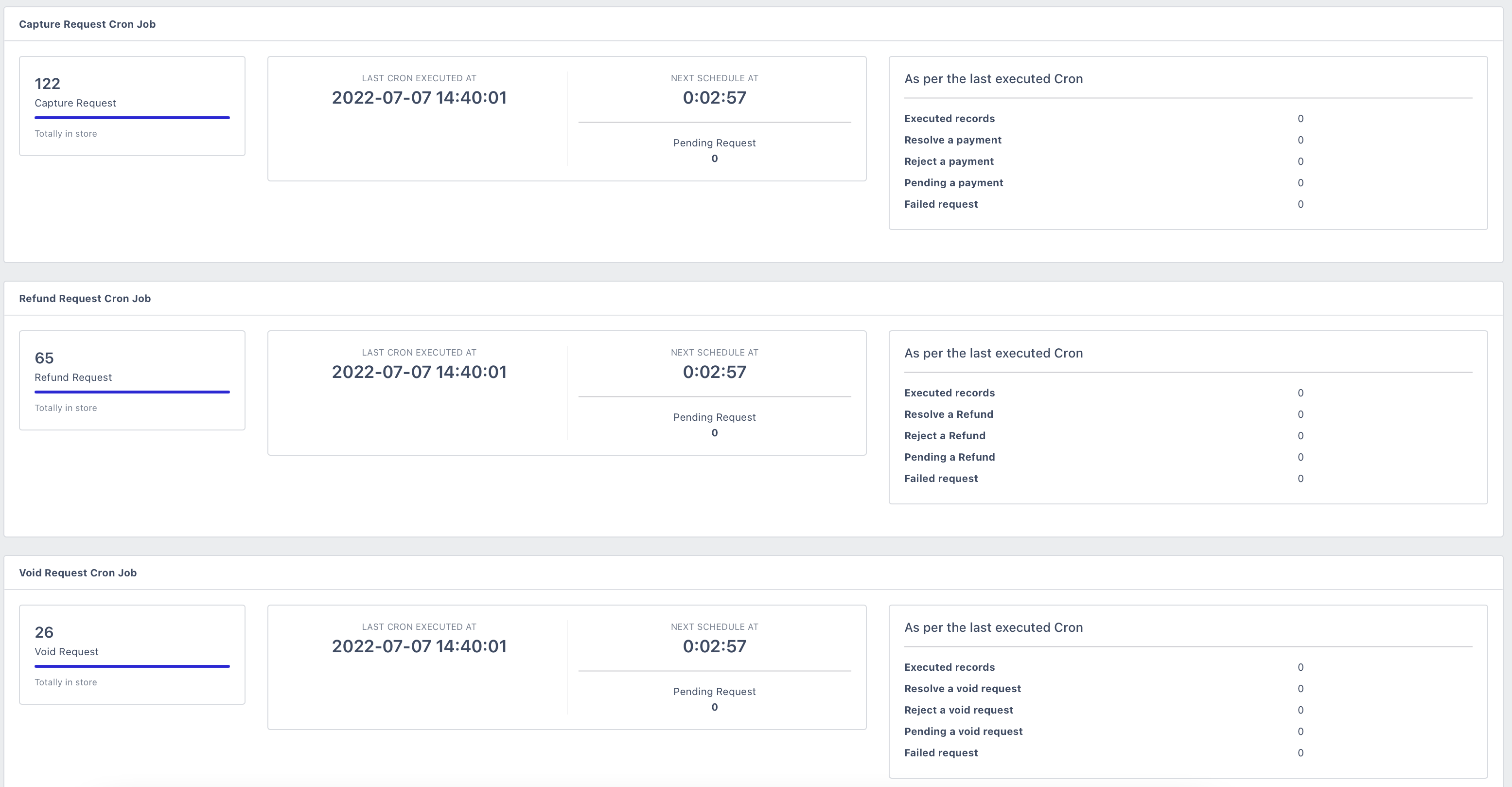
We collect all these payment action requests by batch and send them for approval every five minutes.
To see the updated status for an order, check the status only after you are sure that both:
- we have completed our batch process
- your scheduled cron job has run
Once we approve your request, you can view the updated order status in the Shopify admin panel.
For further information about the payment flow for an order, view the updated payment status in our Worldpay Plugin admin portal.
You can also manage your payment status updates by adjusting your cron job frequency in our Plugin admin portal.
Once an order is authorized, you can capture the order in the Shopify store admin panel.
Shopify allows you to capture multiple orders at once. However, it only allows you to capture the full amount. Partial captures are not available.
We strongly recommend you initiate the capture from the Shopify admin panel to ensure end-to-end synchronization. Currently, Shopify limits the ability to initiate capture requests from external applications.
To capture an order:
Log into the Shopify admin panel.
Click "Orders" in the left-hand menu. The screen displays a list of your orders and their statuses.
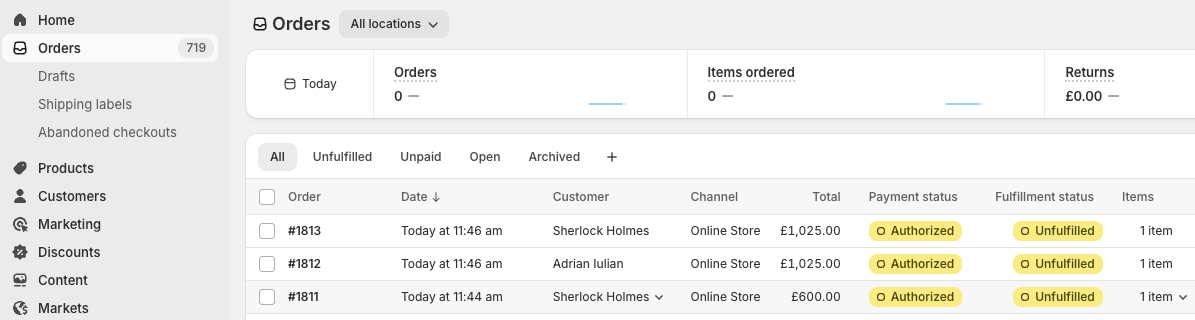
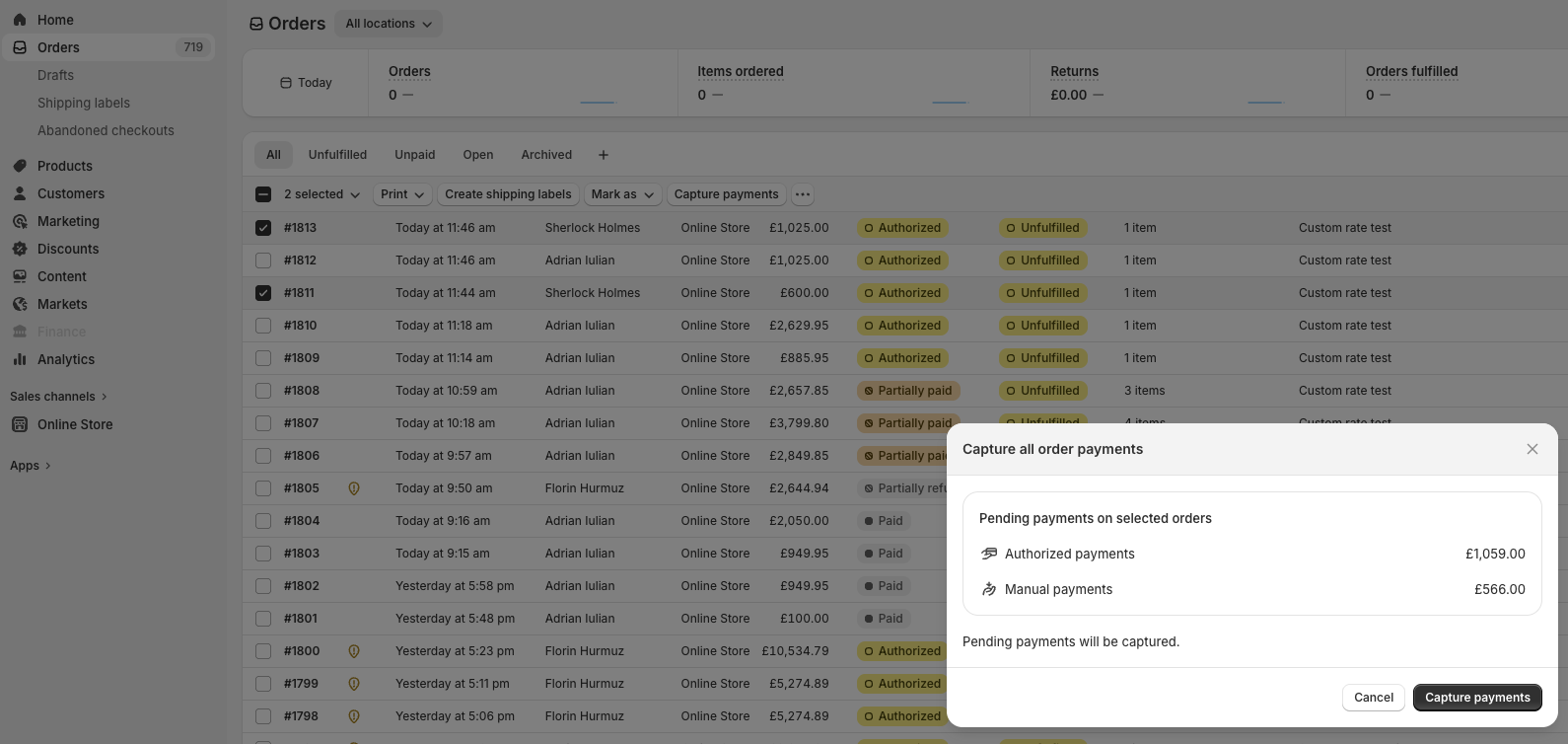
- To send multiple capture requests, select the orders using the checkboxes, click the "Capture payments" button above the order list, and confirm.
You can also send single capture requests by clicking on the order number to open the individual order details page.
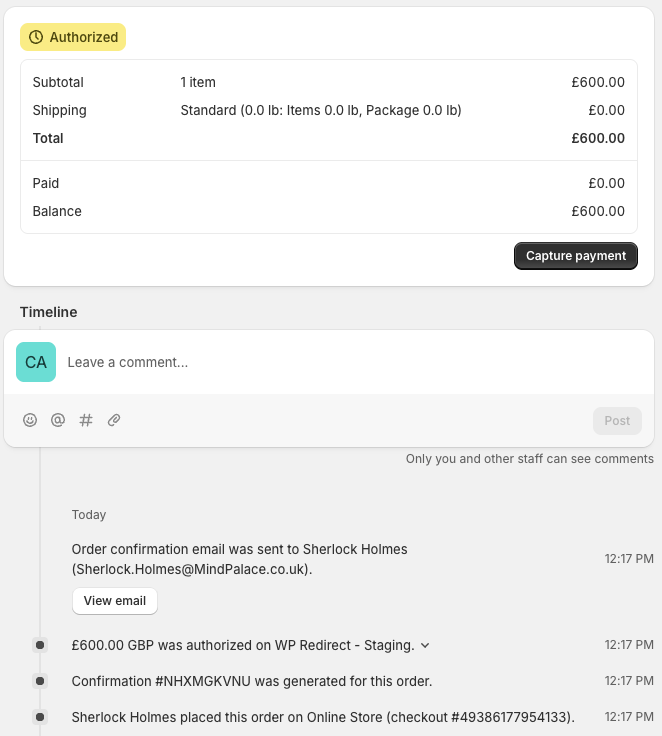
- Click the "Capture payment" button and confirm the capture request.
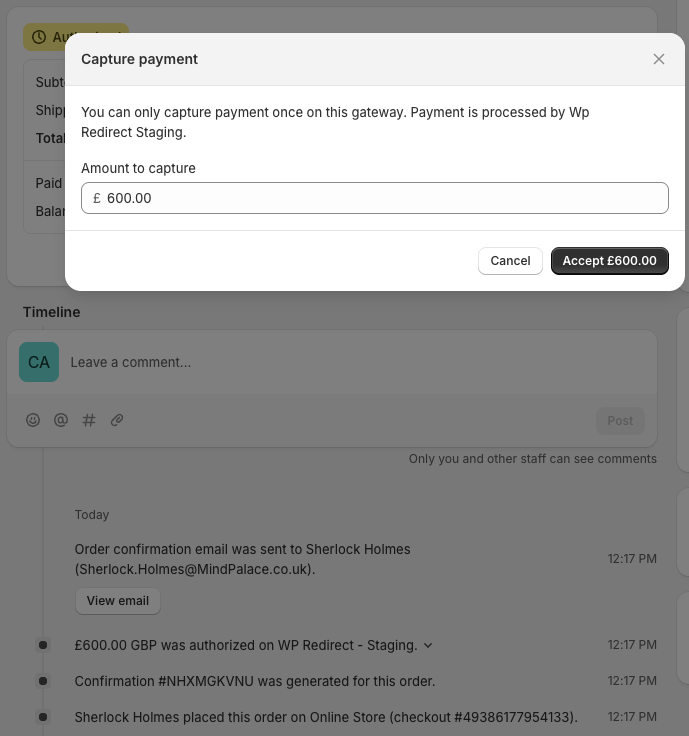
Once we have collected and approved your capture request, we immediately update the status in both the Shopify admin panel and our Worldpay Plugin admin portal.
You can only refund an order once it has been captured.
To start a refund:
Log into your Shopify admin panel.
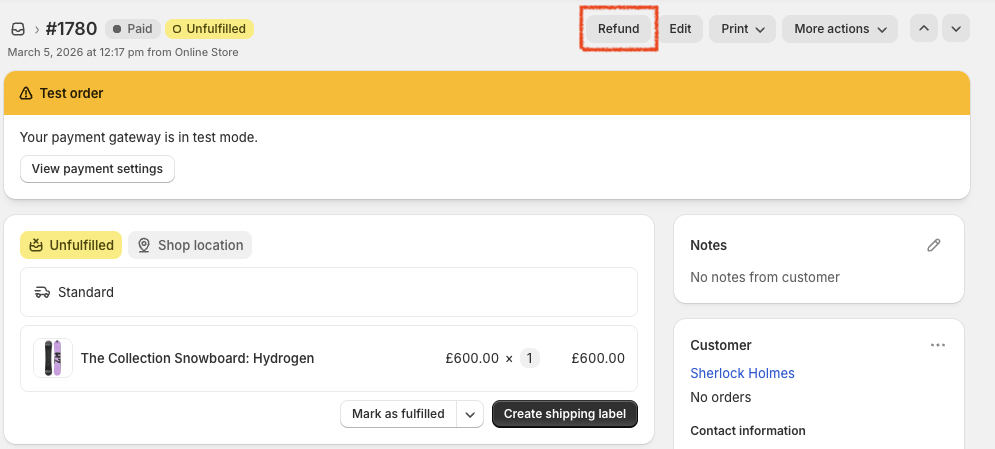
Click on the order number on the "Orders" page and select "Refund" at the top of the order details page.
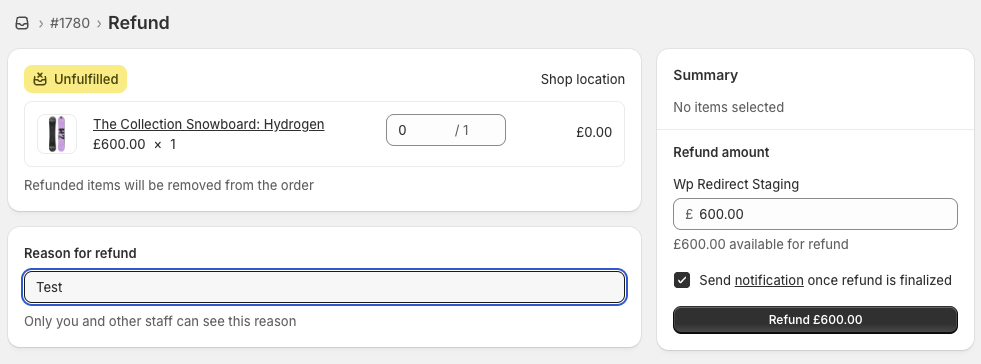
- The following window appears. Add your reason for the refund and click "Refund".
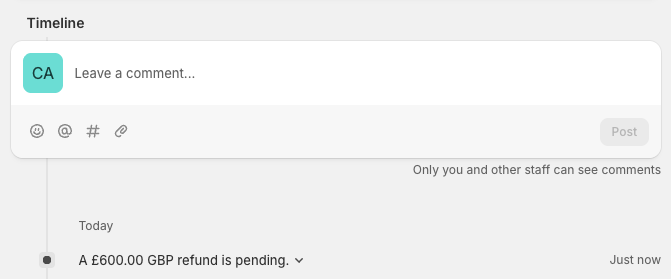
You can see the refund request status on the order details page.
- For a partial refund, edit the "Refund amount" and confirm. If the order contains multiple items, you can either select the item(s) being refunded or follow the prompt to edit the order and add a discount.

Once we have collected your refund request, we update the order status in the Shopify admin panel to show the refund is pending. We update the status again when the refund either succeeds or fails.
In our Worldpay Plugin admin portal, we update the refund status throughout the order journey as:
- Sent for Refund
- Refunded
- Refund Failed

You must ask your Worldpay Implementation Manager to set up your webhooks to be able to see these payment statuses for refunds in our Plugin admin portal.
Once it has been authorized, you can cancel an order in the Shopify store admin panel. You cannot cancel an order if it has already been captured.
To cancel an order:
Log into your Shopify admin panel.
Click the "More actions" option at the top of the order details page and click "Cancel order".
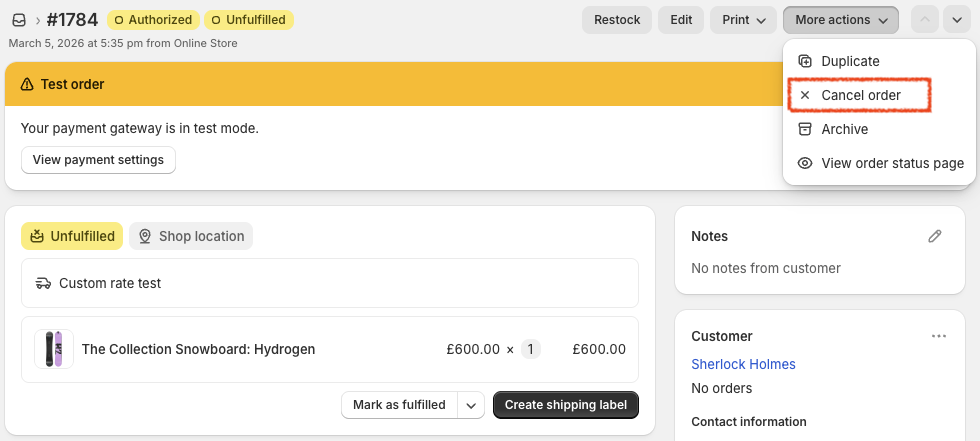
- A pop-up confirmation screen appears. Select your reason for the cancellation and click "Cancel order".
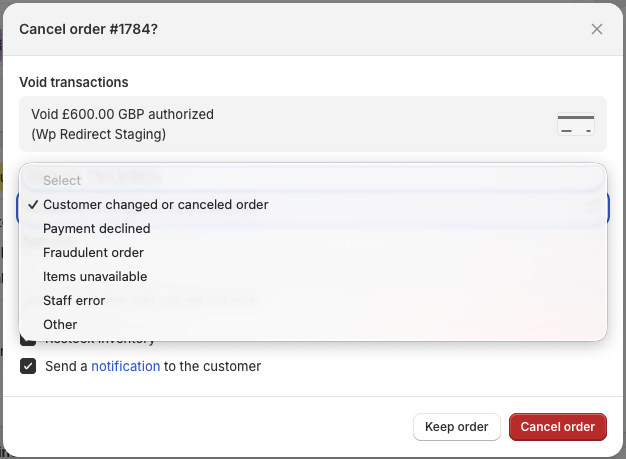
A cancellation request is sent to us. Once we have collected and approved your cancellation request, we immediately update the status in both the Shopify admin panel and our Worldpay Plugin admin portal to show it as cancelled.
You can view the status of your order in Shopify's admin panel with the below steps.
Log into the admin panel.
Click "Orders" in the left-hand menu. The screen displays a list of your orders and their statuses.
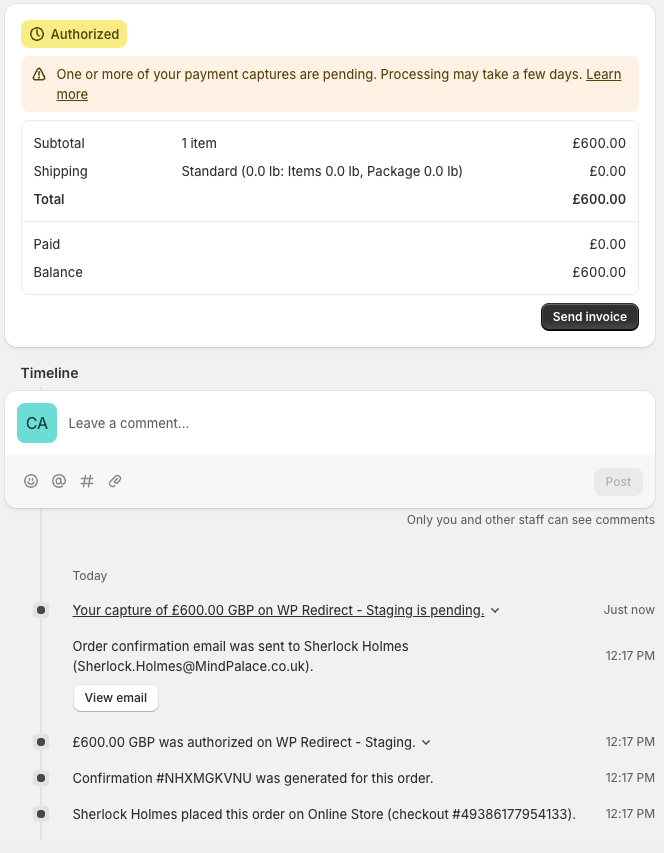
Click the order number to see the status timeline for a specific order.
- In the below order timeline, a capture request has been sent and is waiting for confirmation:
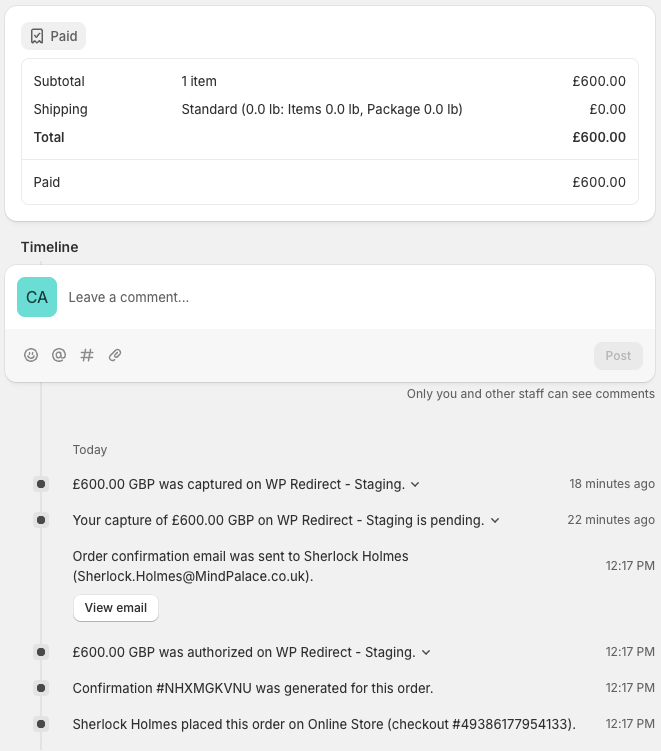
- Once the capture is complete, the order status updates to "Paid".
To view the specific payment status of your order, visit our Worldpay Plugin admin portal and follow the below steps.
- Log into our admin portal.
- Click on "Orders" in the left side menu to check the payment status.

- Click "View" to see further details for each order. In the below example, an order with the status "Paid" in the Shopify admin panel has the payment status "Sent for Settlement" in our Plugin admin portal:

To change the frequency of your payment status updates:
Log into our Worldpay Plugin admin portal.
Go to Configuration → General in the left side menu.
Select your store and choose your preferred cron job frequency. We recommend you set the frequency to "Every 5 minutes" if your order volume is high.

You can track cron job activities for all payment actions in your cron job dashboard, available in the left side menu in our Plugin admin portal: