Last updated: 22 April 2026 | Change log
You can personalize your checkout page with your choice of six different themes.
To change the theme of your checkout page:
Go to our Worldpay Plugin admin portal.
Click on "Checkout Theme Personalization" in the left side menu and select your store.
Choose a desired theme.
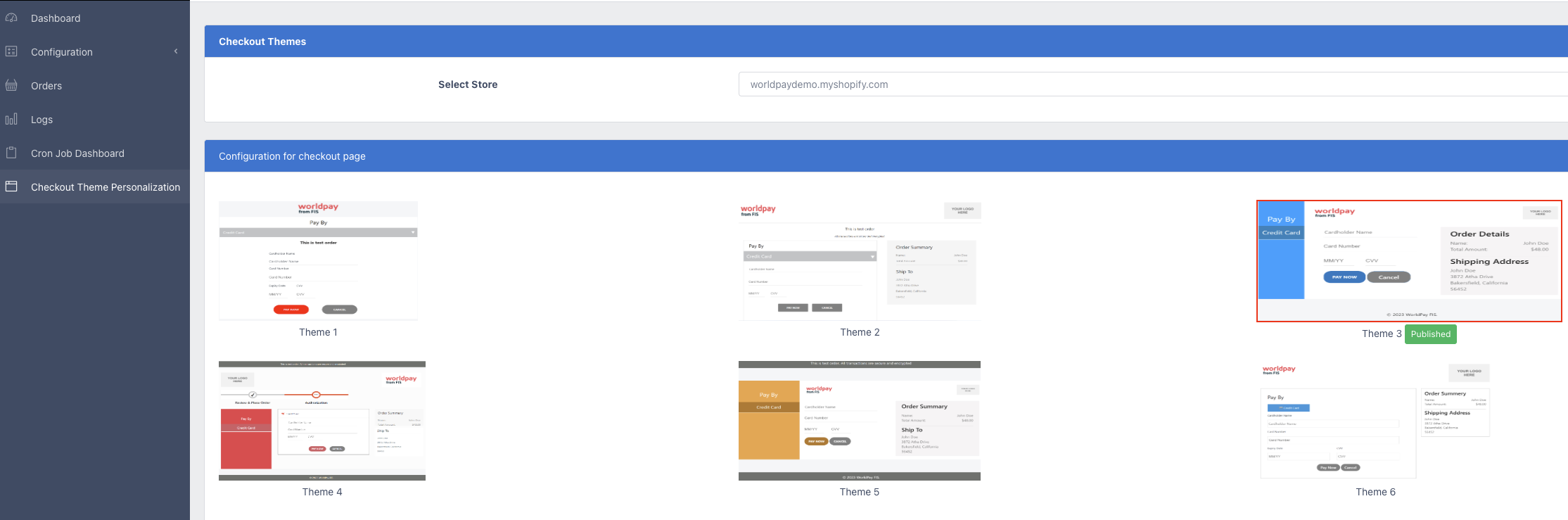
When you select a theme, a configuration page appears:
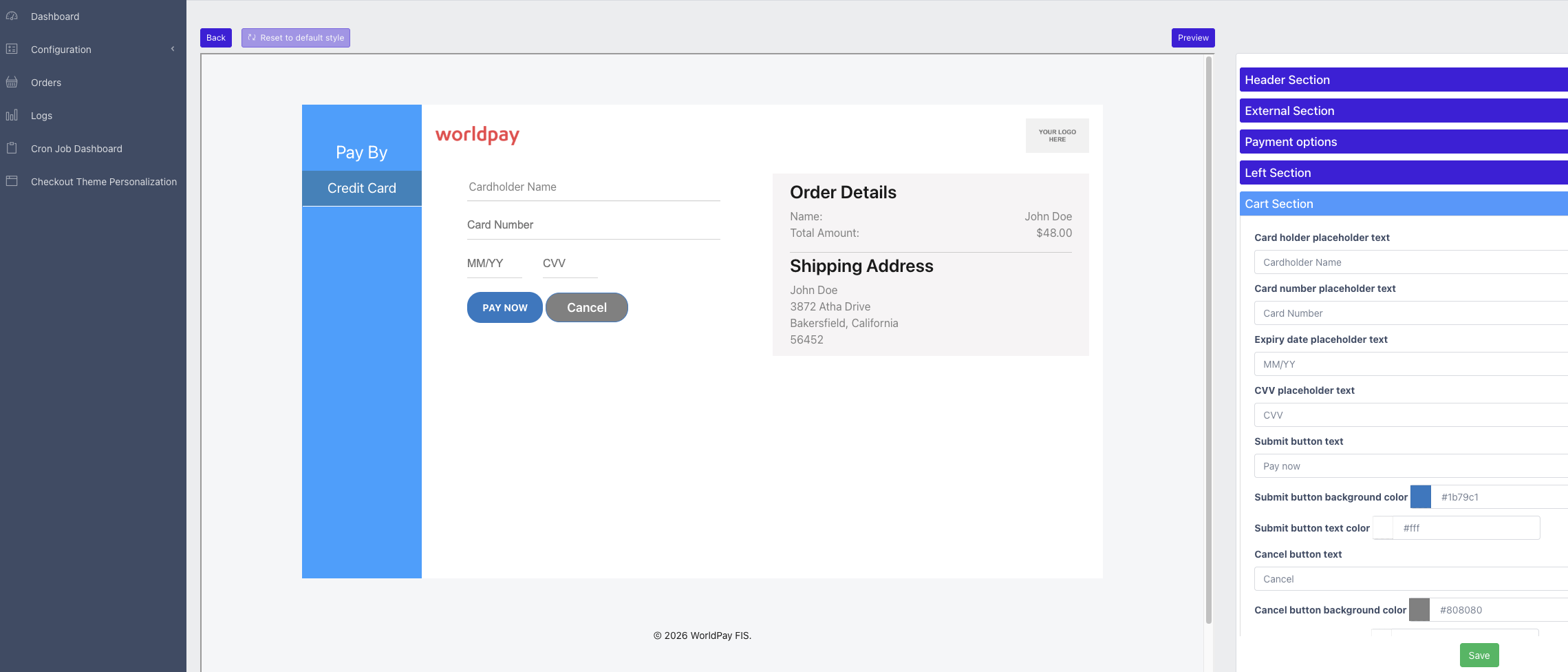
Customize your store logo, change the background color, and alter the in-text content using the fields on the right side.
Click "Save" to save your changes and to see a preview of your new checkout page. The theme must be published before going live. You can reset the theme configuration to the default by clicking "Reset to default" in the top left corner.
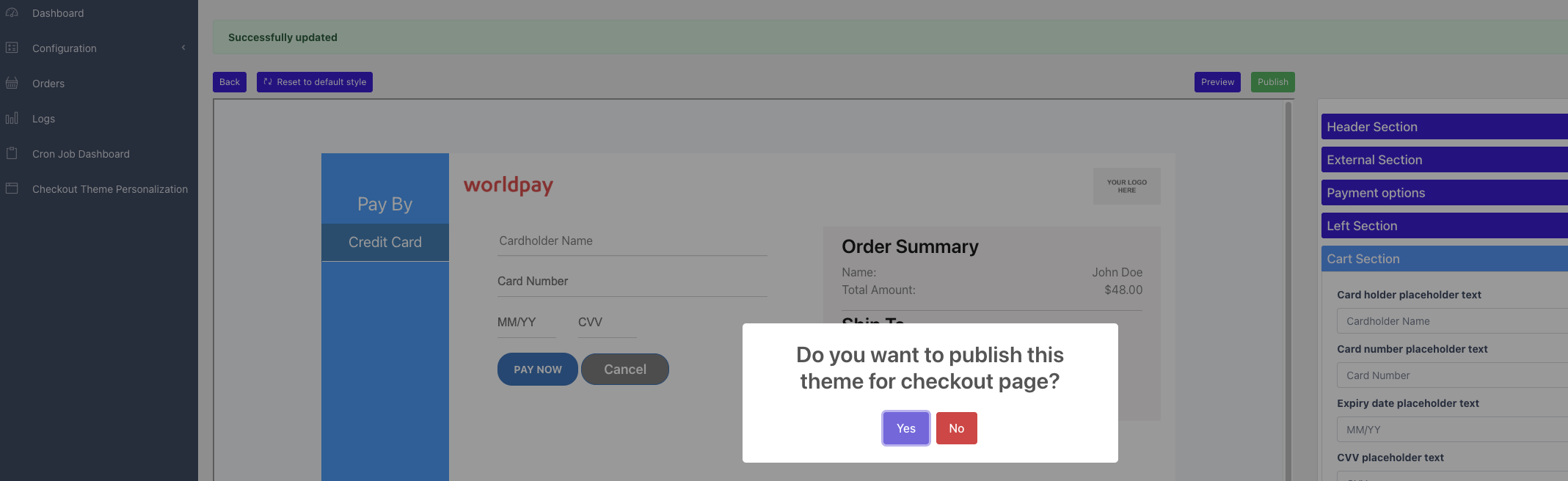
When you have selected your preferred layout, publish your theme by clicking "Publish" in the top right corner and confirming.
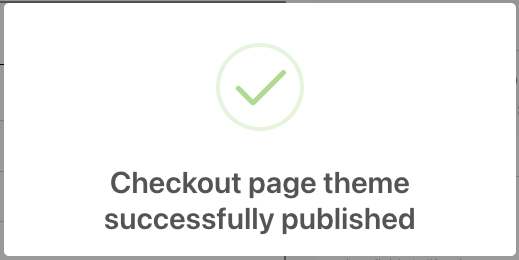
- A pop-up success message appears:
We capture all transactions in logs for debugging purposes and store them in our Worldpay Plugin admin portal.
To view the transaction logs:
Go to our Plugin admin portal.
Click "Logs" in the left side menu. The various logs appear.
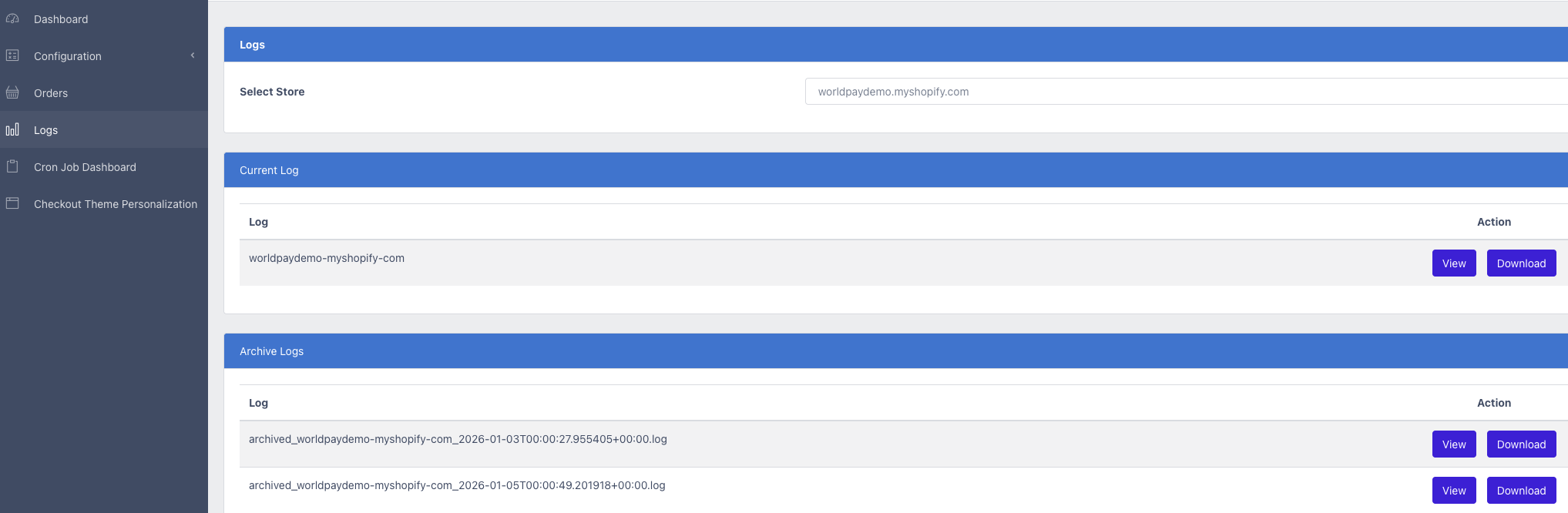
You can read and download the requests and responses from Shopify and from us in both sections.
In the "Current Log" section, the log file holds recent transactions.
In the "Archive Logs" section, the log files hold old transactions, listed by date.
We do not save any details about user credit cards.
Next steps