Last updated: 17 September 2026 | Change log
Satispay is a digital wallet payment method that allows customers to pay for their online purchases using their phone number or via a QR code flow.
Make yourself familiar with our API principles to ensure a resilient integration.
Product overview
| Payment type | Country | Acceptance currency | Recurring | Reversals | Partial reversals | Auth and settlement (sale) |
|---|---|---|---|---|---|---|
| Digital wallet | Europe | EUR | ❌ |
|
| ✅ - after 15 minutes |
- Minimum transaction value: 1.00 EUR
- Maximum transaction value: 10,000 EUR equivalent
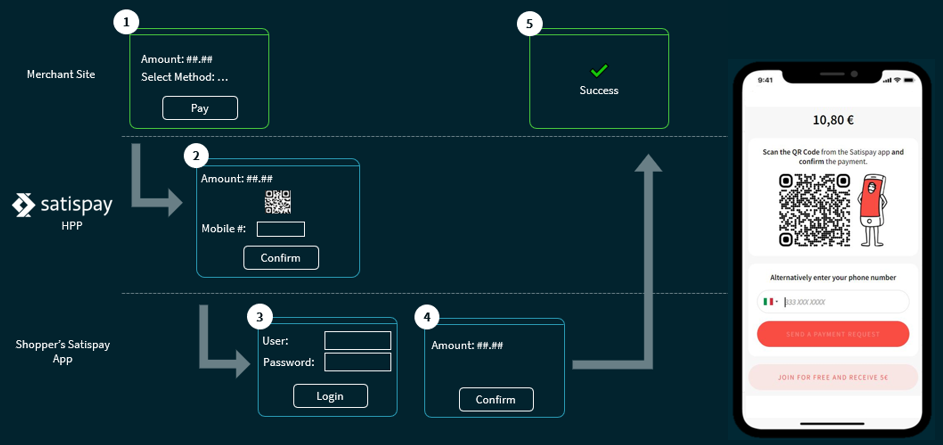
- Your customer selects Satispay as their payment method on your checkout page.
- They are redirected to the Satispay payment page, which displays the Satispay QR code or, alternatively, your customer may enter their phone number. If your customer enters their phone number, their device receives a notification to authenticate and they skip to step 4.
- Your customer scans the QR code using the scan function within their Satispay mobile app and authenticates.
- They are presented with the transaction details and funding options. Your customer confirms the payment.
- Satispay confirms that the payment is successful and returns your customer to your payment success page (defined by the
successURL).
Use our API reference and set your headers.
POST https://try.access.worldpay.com/apmPayments
Collect the APM details and send an API request with these details to create a payment.
- Tryhttps://try.access.worldpay.com/apmPayments
- Livehttps://access.worldpay.com/apmPayments
{
  "transactionReference": "Memory265-13/08/1876",
  "orderReference": "apm-order-12345",
  "merchant": {
    "entity": "default"
  },
  "instruction": {
    "method": "ach",
    "narrative": {
      "line1": "MindPalace"
    },
    "value": {
      "amount": 750,
      "currency": "USD"
    },
    "paymentInstrument": {
      "type": "direct",
      "accountType": "checking",
      "accountNumber": "01234567890123456",
      "routingNumber": "012345678",
      "checkNumber": "012345678901234",
      "companyName": "Worldpay",
      "billingAddress": {
        "address1": "8500 Governors Hill Drive",
        "address2": "Symmes Township",
        "postalCode": "45249",
        "city": "Ohio",
        "state": "US-OH",
        "countryCode": "US"
      }
    },
    "customer": {
      "firstName": "John",
      "lastName": "Johnson",
      "customerId": "43424",
      "email": "john@example.com"
    }
  }
}
For Bizum transactions, please follow this extra regex [a-zA-Z0-9]{4,12}
A reference that you can apply to one or more payments according to your business needs. You may reuse the same reference across multiple payments, for example where:
- the total amount for a single order is split across multiple payments
- you use a single reference for each payment in a recurring agreement or split shipment scenario
{
    "paymentInstrument": {
        "method": "satispay",
        "type": "direct"
    },
    "paymentId": "eyJrIjoiYXBtLXNlcnZpY2UtbG9jYWwiLCJsaW5rVmVyc2lvbiI6IjYuMC4wIn0=.BnnxxcMle38OazhwbF8J+4rtJi8CAq:Y3zUOn1dw6VWfvx:PHL5L0S+5ara5vz6ouV5yBmVUQCiSwQjs+1x5qJIJxAKWMWc2Mlb1doricEYlzsZIRIGCflvnYu1Ns8g1S0+66n6wCELiB9OHfX7cdDZM8QaH19DiFbmMAchPSTy3YhKhjHb7eU81eSTnCsB+em66NOYspir3PJsMwGsI7DgQG6H8RA6ud004Gi7UbmmWuCYako2x2qLNAoCkV0HeDe9tVGUUJ8RPRm2jMHH20eHV:lzKfpwhCpCj20XtN:CPsSI2e:sopgZlkbmyvzDIeWSIThE3J1pPGsapqefRFo:b1Rfx8XquR8u:dBYr5a70wYkewsxOvrYXmLip3Fvy7rdfTE9SB:F5xmui5ij57ItzoUGQqmhdlJEFtZOvawnk19rQ8+2IHhZzeukzTZ41bET6DfydrjX20ywVxbq2Jw==",
    "lastEvent": "pending",
    "_links": {
        "self": {
            "href": "https://try.access.worldpay.com/apmPayments/eyJrIjoiYXBtLXNlcnZpY2UtbG9jYWwiLCJsaW5rVmVyc2lvbiI6IjYuMC4wIn0=.BnnxxcMle38OazhwbF8J+4rtJi8CAq:Y3zUOn1dw6VWfvx:PHL5L0S+5ara5vz6ouV5yBmVUQCiSwQjs+1x5qJIJxAKWMWc2Mlb1doricEYlzsZIRIGCflvnYu1Ns8g1S0+66n6wCELiB9OHfX7cdDZM8QaH19DiFbmMAchPSTy3YhKhjHb7eU81eSTnCsB+em66NOYspir3PJsMwGsI7DgQG6H8RA6ud004Gi7UbmmWuCYako2x2qLNAoCkV0HeDe9tVGUUJ8RPRm2jMHH20eHV:lzKfpwhCpCj20XtN:CPsSI2e:sopgZlkbmyvzDIeWSIThE3J1pPGsapqefRFo:b1Rfx8XquR8u:dBYr5a70wYkewsxOvrYXmLip3Fvy7rdfTE9SB:F5xmui5ij57ItzoUGQqmhdlJEFtZOvawnk19rQ8+2IHhZzeukzTZ41bET6DfydrjX20ywVxbq2Jw=="
        }
    },
    "_actions": {},
    "redirect": "http://secure-test.worldpay.com/redirect?tokenId=dc9c308b-d56b-4823-968e-0f94b20d6b73",
    "commandId": "cmdOl8x_MaK4TxcF3exdl5cL0"
}The identifier of the payment resource.
Links to resources related to the request.
The URL to redirect your customer to, or a QR code in Base64 to show to your customer, in order to complete the transaction.
An action ID generated by us, identifying a single merchant interaction.
Payment instrument for: ACH, Alipay China, Alipay Hong Kong, Alipay Plus, BANCOMAT Pay, Bancontact, Bizum, BLIK, EFT, Euteller, iDEAL guest, iDEAL recurring, Klarna, Klarna (recurring), Konbini, Multibanco, MyBank, Open Banking, PaysafeCard, Pix, Przelewy24, SafetyPay, Satispay, Swish, Trustly, China UnionPay, WeChat Pay.
For Pix payments - display to your customer for them to copy and paste in the Pix app.
For Swish payments - use this value as the {token} in the custom URL scheme: swish://paymentrequest?token={token}&callbackurl={callbackURL}. This will prompt the app to open, allowing your customer to complete their payment.
Check out our API reference for more responses or error codes.
Simulate payment outcomes and trigger webhooks in our Try environment by sending a request.
Upon sending a payment request, you receive the payment status pending. Follow the redirect link to our simulator where you can choose between different payment outcomes:
| Simulator outcome option | Payment status | Description |
|---|---|---|
| Pending | pending | Pending payment response. |
| Authorised | authorized | Payment authorized successfully. After 15 minutes, payment is captured automatically. |
| Cancelled | cancelledByCustomer | Unsuccessful payment - your customer has cancelled the payment in the Satispay app. |
| Refused | refused | Unsuccessful payment - failure response from the provider. |
| Error | error | Error in processing the payment or the session timed out. |
Query the payment to receive the desired payment status.
To simulate a refund, first select the "authorised" simulator outcome. After 15 minutes the payment is automatically captured - with the status sentForSettlement. Query the payment after this time and call the next action reversal link to receive the status sentForRefund.
Next steps